Connect Google Account using Globus
If you have a Google email account (gmail.com) then you can use it for VDJServer. To get started, go to the VDJServer website with your web browser as shown in the figure below.
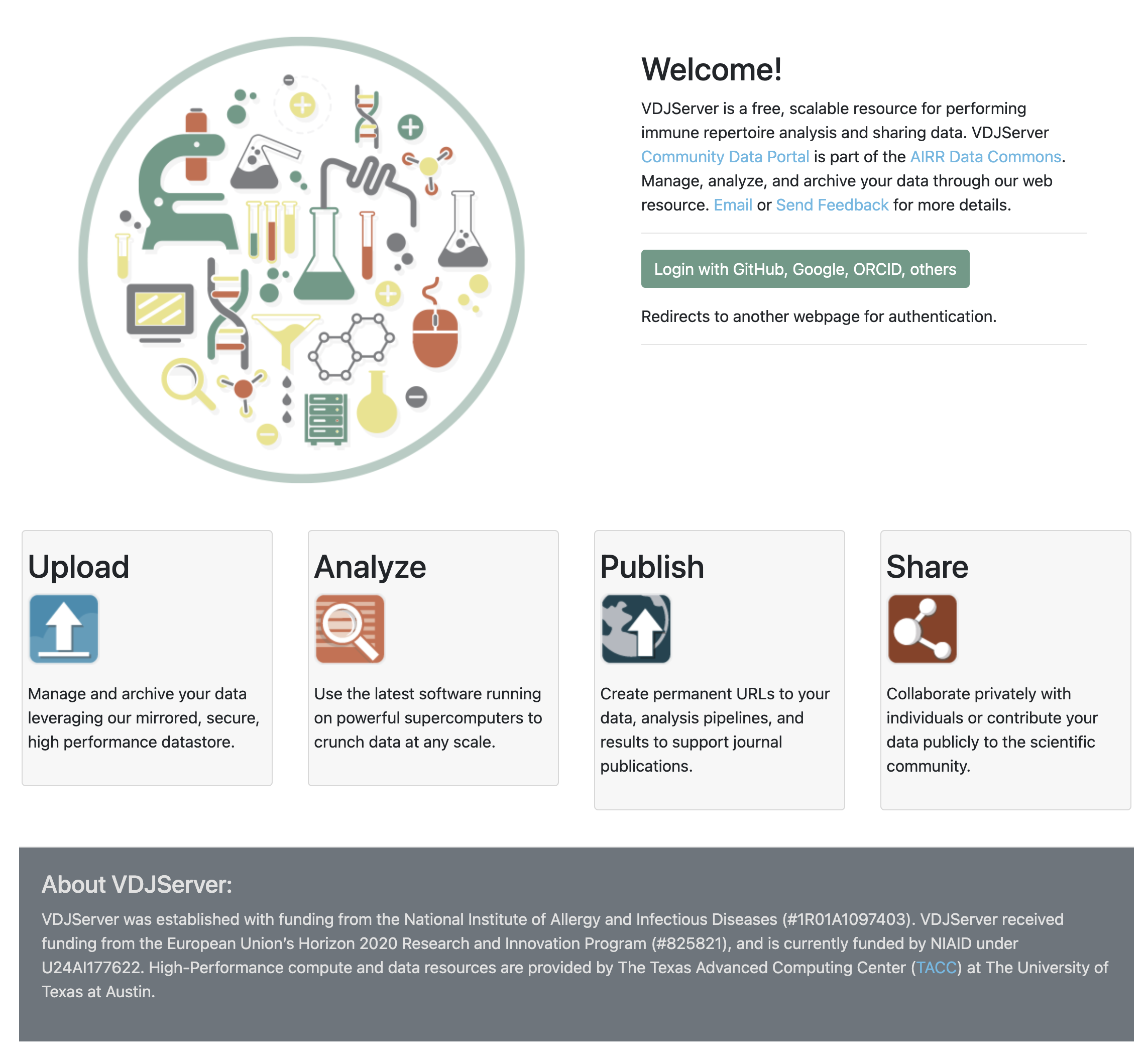
Click on the “Login with …” button, and you will be taken to a Tapis options page that provides a number of login options.
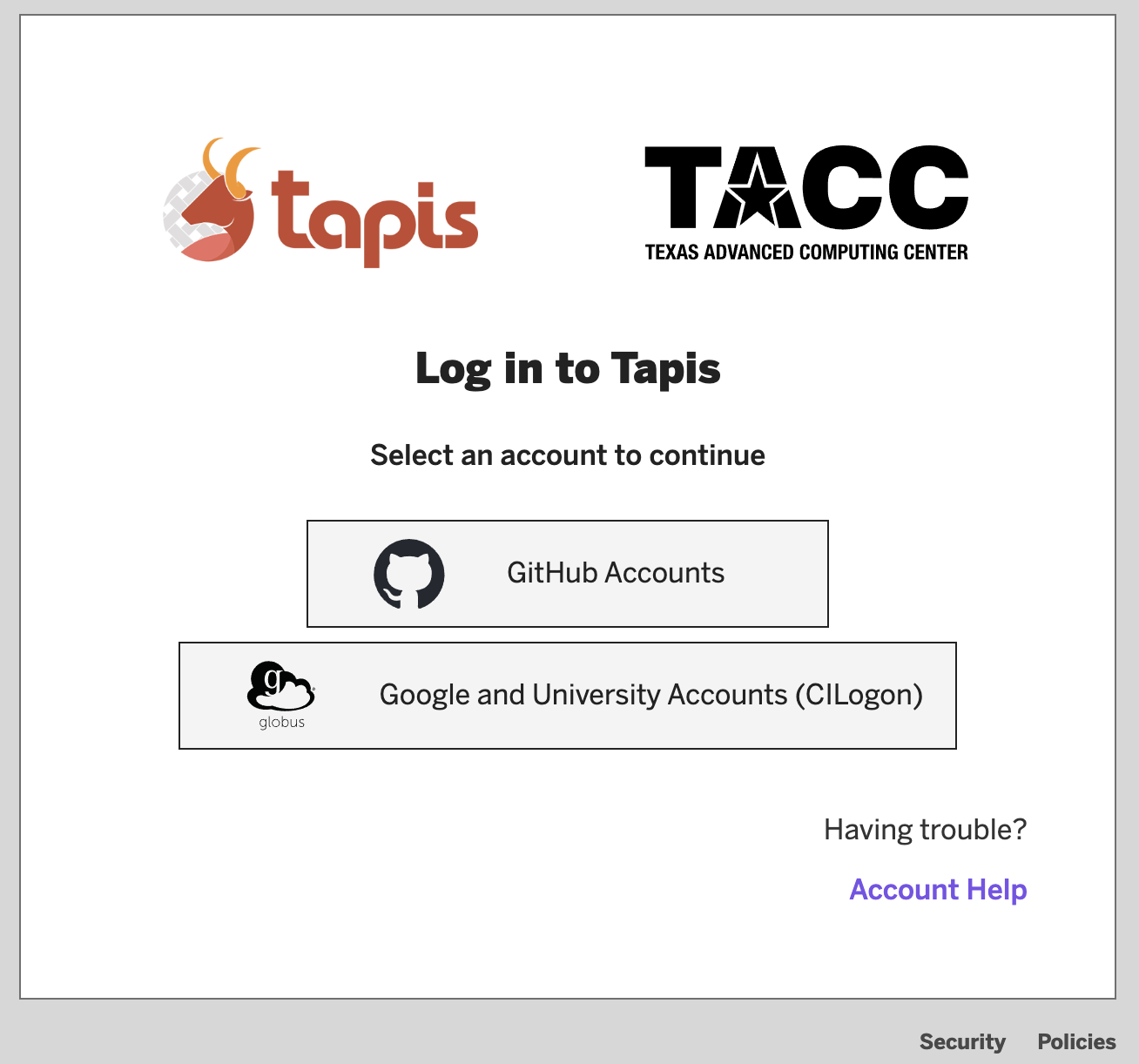
Click on the “Google and University Accounts (CILogin)” button from the Tapis options. This will display the Globus login page as shown below.
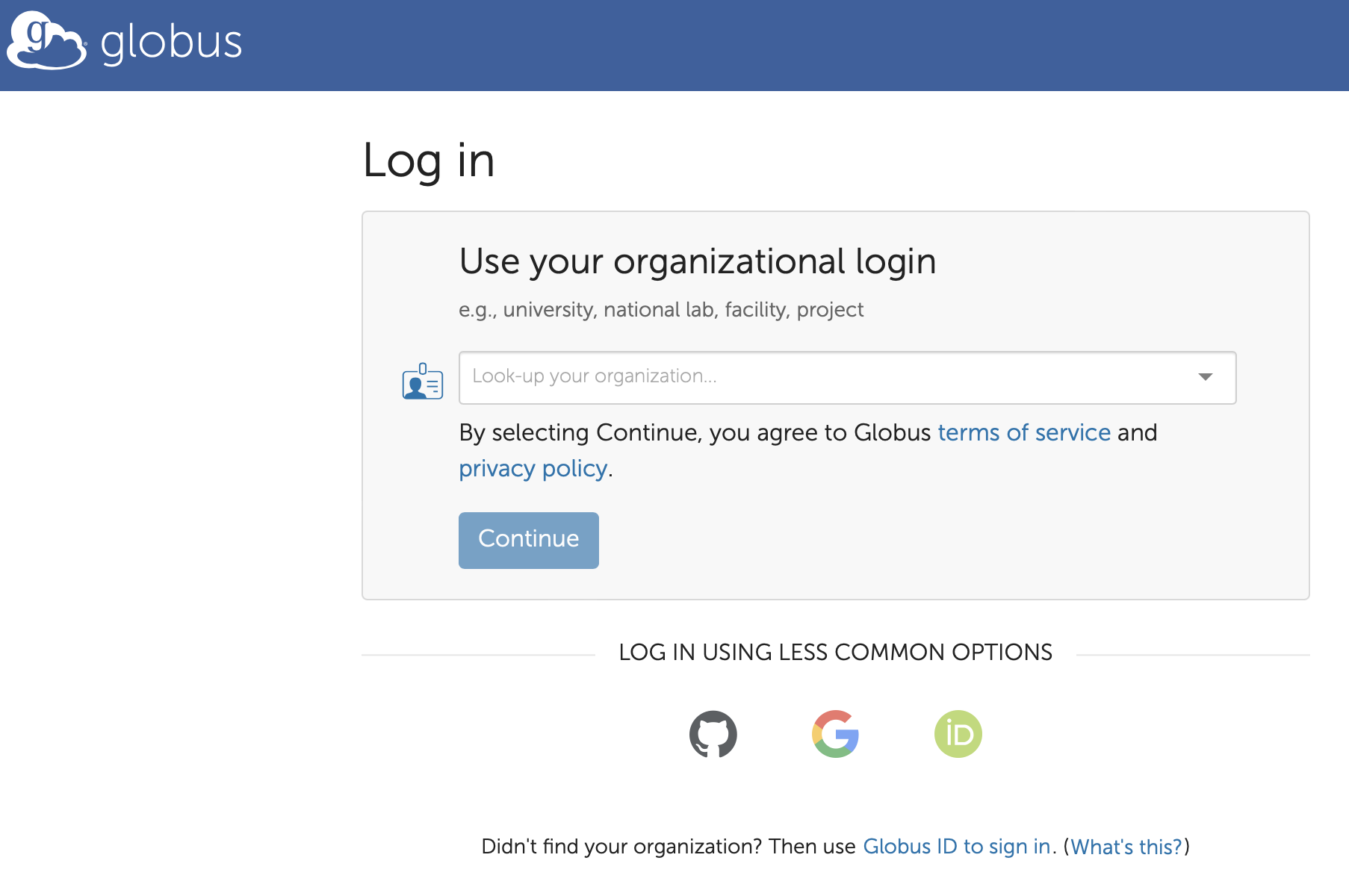
At the bottom, under “LOG IN USING LESS COMMON OPTIONS”, click on the Google icon. This will redirect to the Google login page.
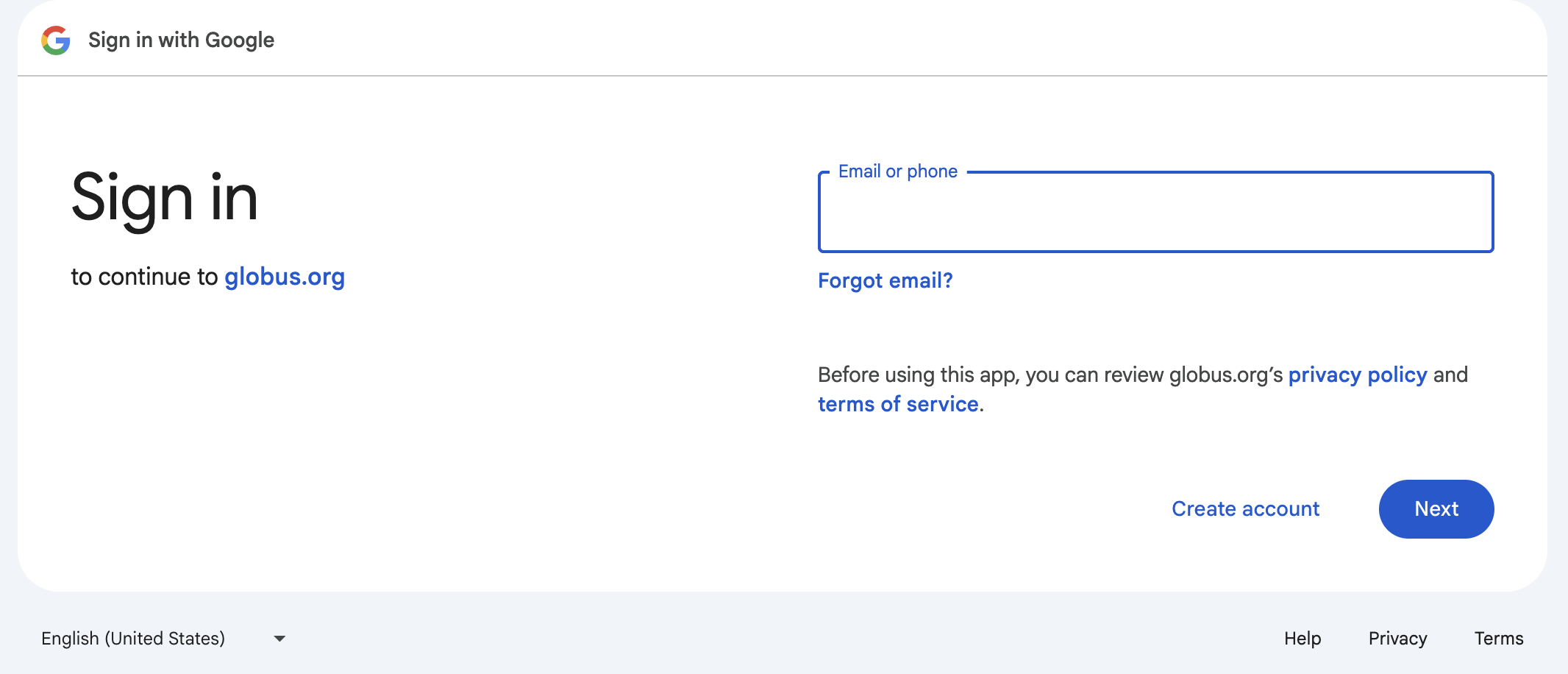
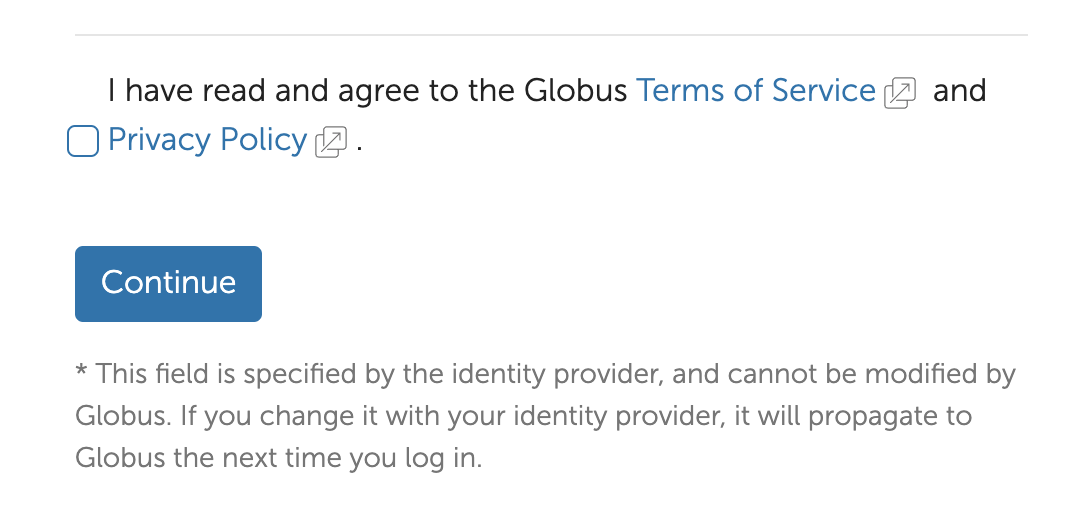
Login with Google as normal. This may require additional two-factor authentication or other security measures depending upon your Google account. After you successfully login with Google, you will be redirected back to the Globus website. Globus will require you to accept their terms of service.
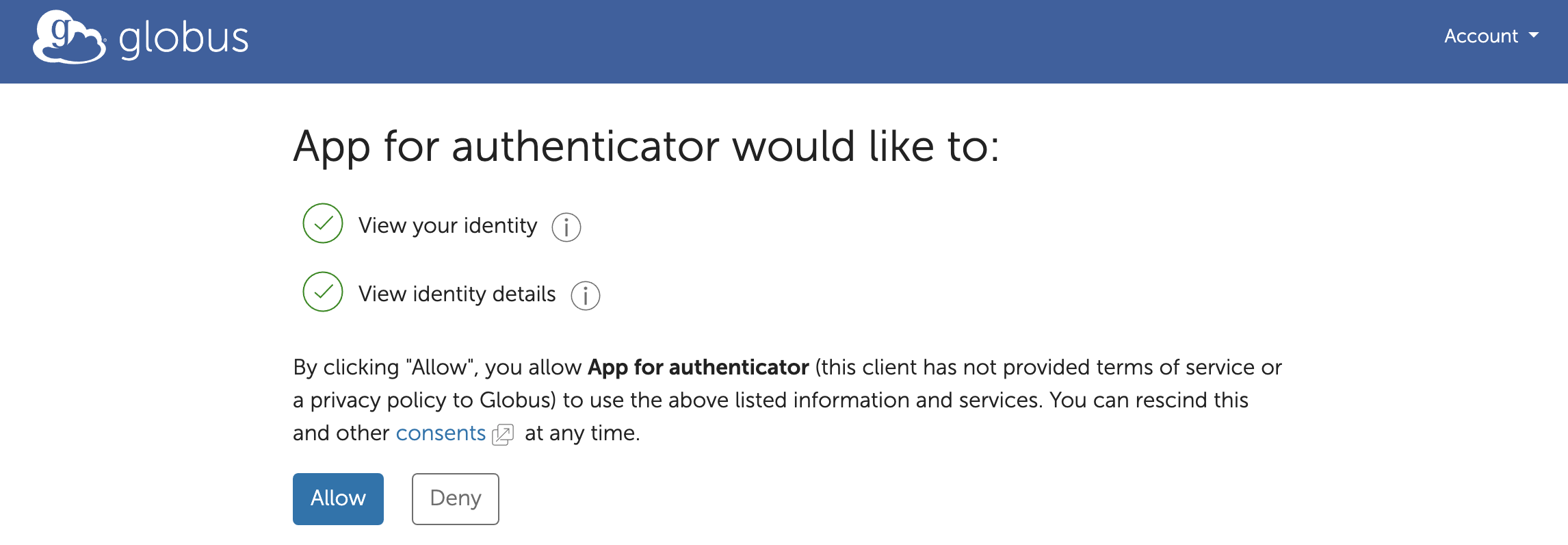
Globus will now require certain information in order to enable authentication services. Globus shows the type of information that you need to allow for access. The following screenshot shows an example. Review the information and click “Allow” button to accept.
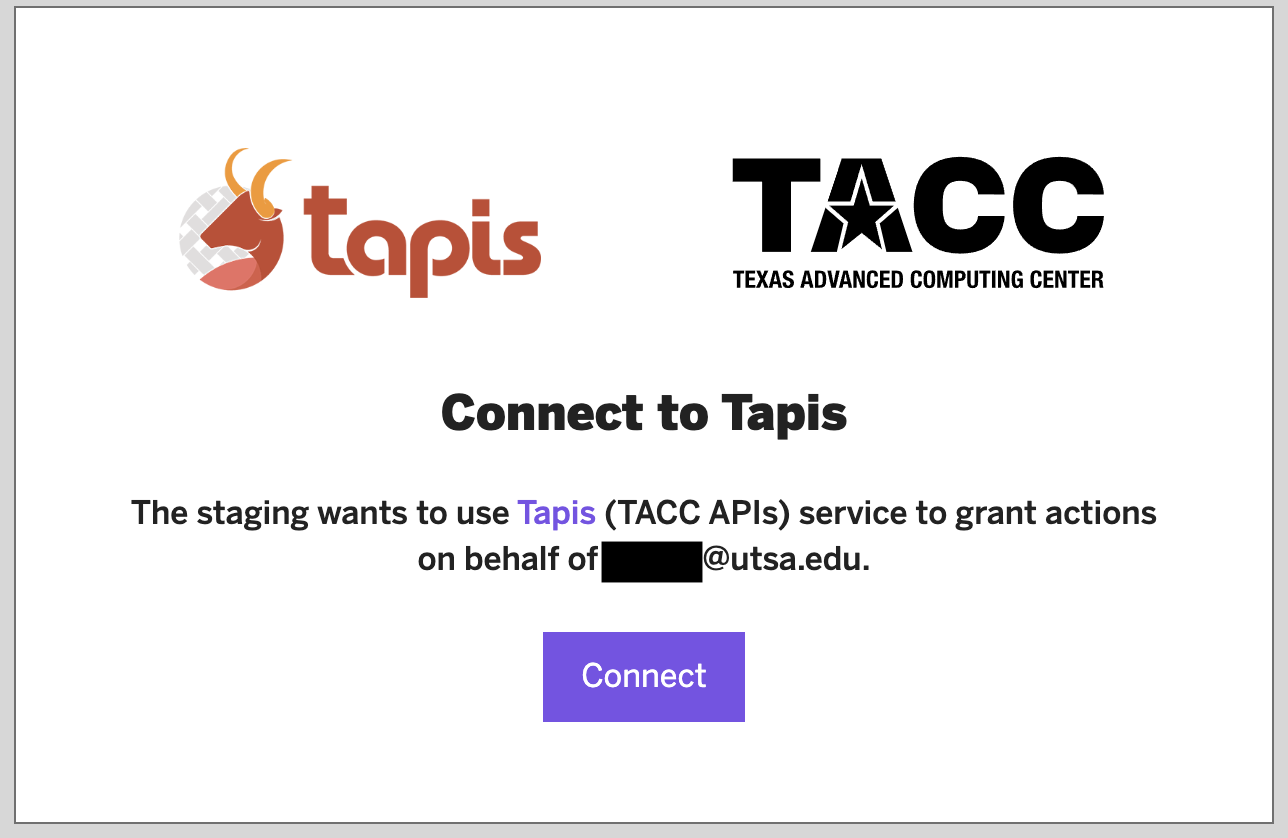
Finally, you will be redirected back to the Tapis webpage to finish connecting your 3rd party account to VDJServer as shown below. Click “Connect” to finish the process.
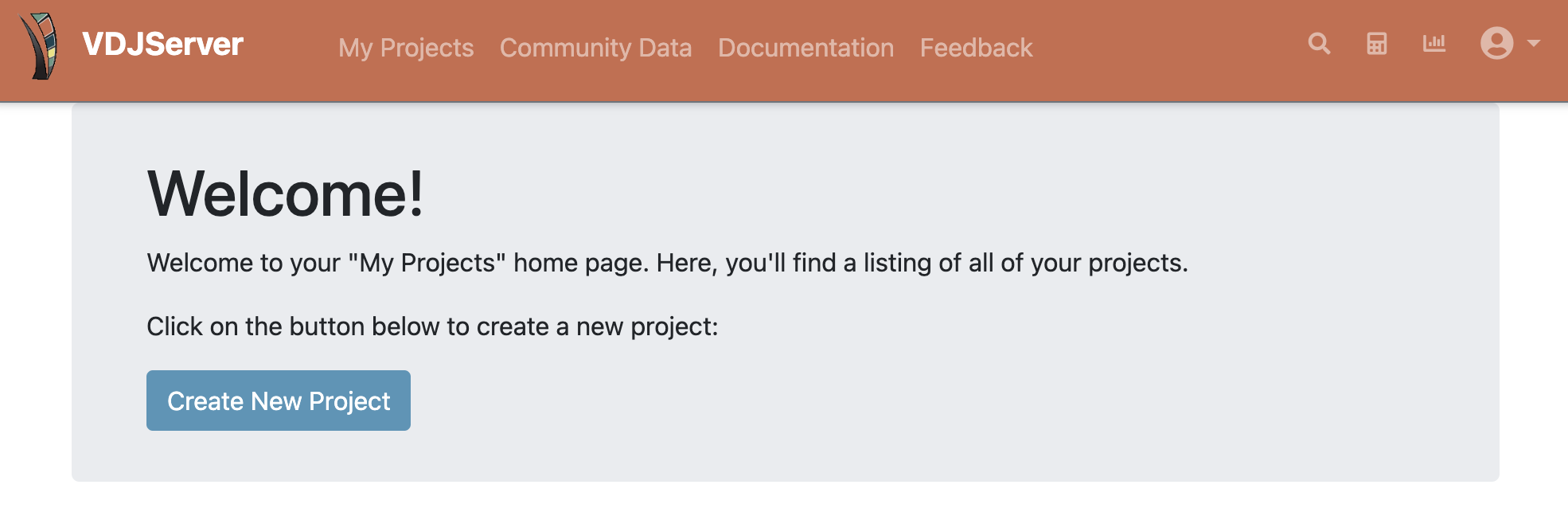
If authentication worked properly, you will be shown the VDJServer My Projects page. In the future, you will not need to repeat the intermediate authorization steps.
Congratulations! The full capabilities of VDJServer are now available for you to use.